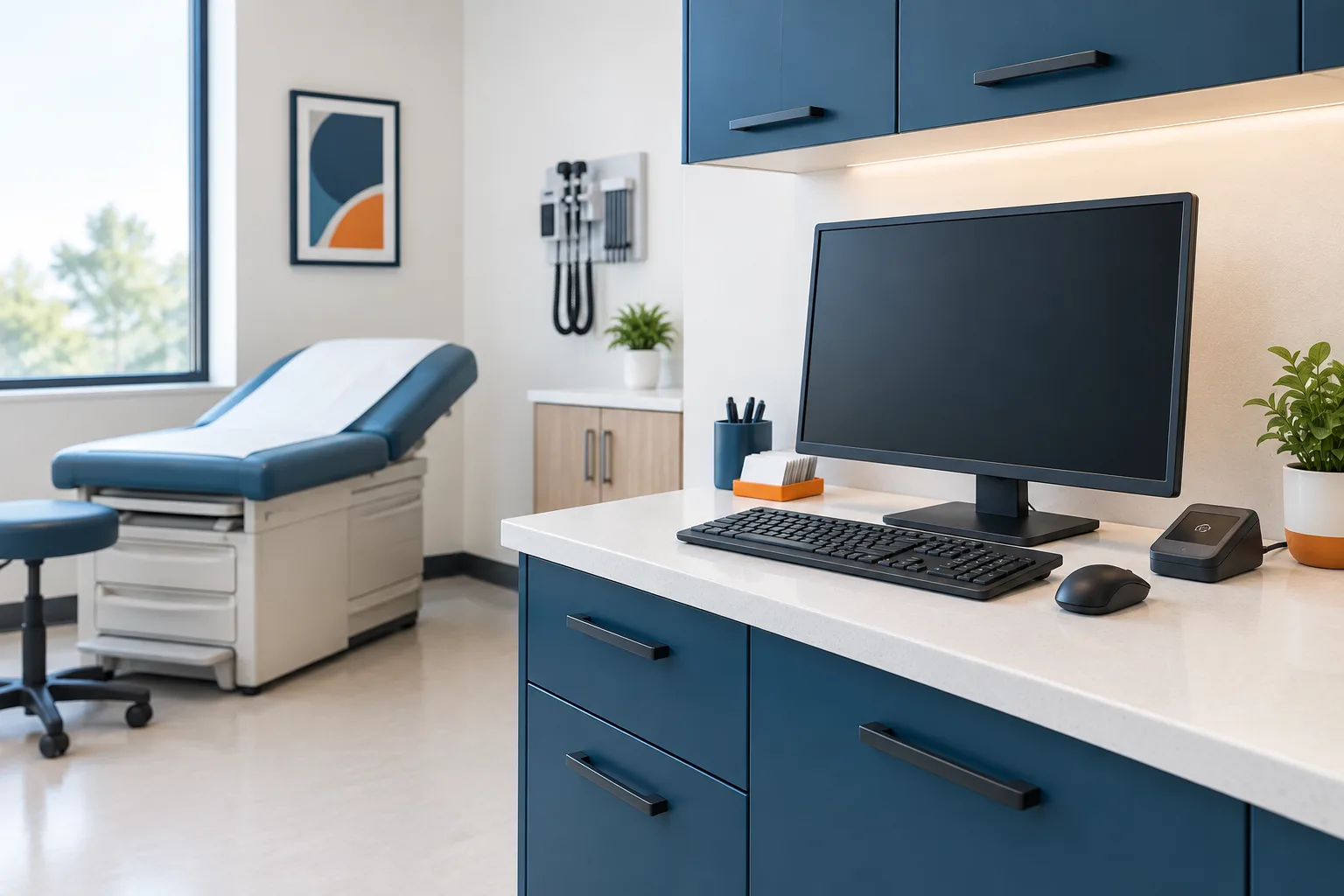
To secure shared exam room computers, let each staff member authenticate with an individual account, then make switching users quick and predictable. A shared computer can support a busy clinic workflow without requiring everyone to use the same Windows or EHR login. The key is to protect the previous user’s session and verify that the next person’s activity is recorded under their own identity.
This takes more than adding a badge reader or setting a short timeout. Workstation sign-in, EHR access, other clinical applications, and audit logs all need to work together. A practical setup should support room turnover while preventing patient information from remaining open to the next person.
Why shared logins create a problem
A generic account may appear faster, but it makes it harder to determine which staff member performed an action. When multiple people use one identity, a workstation or EHR log may show that the shared account was active without clearly identifying the person behind it. That limits the usefulness of records when a clinic needs to review access or investigate an unexpected change.
Named accounts make responsibility clearer. Each user should have their own approved credentials, and access should match their role. Avoid writing credentials near the workstation or relying on staff to remember whose session is open. For broader guidance on protecting clinical computers, see Zevonix’s article on healthcare endpoint security.
Design a fast, individual sign-in process
The goal is not to make staff repeatedly navigate a long login process. It is to make the secure action the easiest action. A clinic can evaluate individual passwords, badge-based access, a PIN, or a combination, depending on its systems and workflow. Whatever method is chosen, each credential should be assigned to one person and the process for replacing lost or compromised credentials should be clear.
Badge tap can reduce typing, but a badge identifies the credential presented to the system; by itself, it does not prove who is holding it. Set clear expectations that badges are not lent or left at shared workstations. Consider whether the sign-in method needs another factor, and make sure staff know what to do if a badge is missing or not working.
Fast user switching should lock or close the outgoing user’s session before opening the incoming user’s session. It should not simply place a new user on top of an EHR session that remains active under someone else’s name. Test how the switching method behaves with the EHR and other clinical applications your team uses. For related considerations, see EHR support for healthcare practices.
Decide what happens to an open session
Before rollout, agree on what should happen when a staff member leaves a room. For example, does the workstation lock and preserve the session for that user, or does it end the session and require a fresh sign-in? The right choice depends on how the EHR handles saved work and how the clinic manages handoffs. In either case, the incoming employee should not inherit the outgoing employee’s identity or access.
Pay special attention to unsaved notes, in-progress orders, messages, and other work that may be open when a user leaves. A lock should protect what is on screen, but the clinic also needs to understand whether the application saves changes, times out, or keeps a session active in the background. Ask the EHR administrator or support team to confirm the behavior rather than assuming that locking Windows signs out of every application.
Plan for the ordinary exceptions, too. Decide what staff should do if they find an unlocked workstation, if a session is disconnected, or if someone forgets to sign out. The response should protect patient information without encouraging staff to use a colleague’s account to keep work moving. Include a clear process for reporting access issues and getting help.
Choose timeouts for the workflow
Automatic locking or logoff can protect a workstation when someone forgets to secure it. But a timeout that is too disruptive may lead people to work around it, while one that is too permissive may leave information visible. Evaluate the actual room workflow, the sensitivity of what can remain on screen, and the application’s session behavior.
Test the timeout during realistic room turnover. Check what happens to the workstation, the EHR, and any connected clinical applications when the time limit is reached. Make sure staff can safely recover their own work, and confirm that a locked or disconnected session does not become accessible to the next person without their own authentication.
There is no single setting that fits every room and application. Document the clinic’s chosen approach, explain it to staff, and revisit it if the workflow or software changes. A compliance review can help connect the technical settings to the clinic’s policies; Zevonix also offers a healthcare IT compliance checklist for practices reviewing their controls.
Check that the audit trail follows the person
Do not assume that an individual Windows login automatically means every EHR action is attributed to that person. Confirm which identity the EHR records for sign-ins, chart access, edits, and other relevant activity. Then check whether the workstation’s own logs and the application’s logs tell a consistent story. The ONC’s overview of auditable events and tamper-resistance provides context for why useful audit records matter.
During testing, have different staff members sign in and perform a controlled set of routine actions. Review the resulting records with the appropriate system administrator. Verify that the incoming user appears under their own identity, and that the previous user’s open session does not continue to generate activity under the wrong account. Keep the review within your clinic’s approved testing process.
Pilot before expanding
A small pilot can uncover problems before a new sign-in method reaches every room. Start with a representative workstation and the applications staff rely on. Include typical room turnover, a forgotten lock, a lost or unavailable badge, a disconnected session, and a user who needs to return to their own unfinished work. If the clinic has older computers or a mix of applications, include those in the test rather than assuming every workstation will behave alike.
Ask staff whether the process is clear and practical, and observe where they hesitate or take shortcuts. Fix confusing steps before expansion. Keep a brief record of what was tested, what failed, and what settings or training changed. The pilot is successful only when it supports both individual accountability and the real pace of clinical work.
Frequently asked questions
How can staff quickly switch users on a shared exam-room computer?
Use an approved fast-switching method that locks or ends the outgoing session and requires the next staff member to authenticate as themselves. Test the transition with the clinic’s EHR and other applications.
Can clinic employees share one Windows or EHR login?
A shared identity makes it difficult to attribute activity to an individual. Use individually assigned accounts for staff access, and have the clinic’s compliance lead confirm how the configuration fits its policies and obligations.
Does badge-tap login identify the person or just the badge?
It identifies the credential presented to the system. If someone else can use that badge, the tap alone may not establish who was at the workstation. Set rules for badge handling and decide how lost badges are disabled and replaced.
What should happen when someone forgets to lock or sign out?
Automatic locking can reduce exposure, but the clinic should also define a simple staff response for finding an unattended session. Verify whether the EHR locks, remains active, or requires a separate sign-out.
What should a small practice test before rolling out fast switching?
Test individual identity in the EHR and audit logs, open-session handling, timeouts, forgotten sign-outs, badge loss, application compatibility, and how staff recover their own unfinished work.
Make secure access fit the room
Shared exam-room computers do not need shared accounts. Give each staff member an individual identity, make switching straightforward, protect unattended sessions, and confirm that application records identify the person who acted. For help reviewing healthcare technology workflows, contact Zevonix at (386) 260-0777. Zevonix serves healthcare providers in Daytona Beach and Central Florida.