A lost MFA phone in healthcare can interrupt access to email, an EHR, or other work systems at a busy moment. The safest response is to restore your own account through your organization’s approved process, not to borrow a colleague’s login or look for a workaround.
Act promptly, especially if the phone may have been stolen. Contact your IT or help-desk team, use only an approved alternate sign-in method, and have the old authenticator removed as part of the recovery. The exact steps depend on how your organization manages accounts, so treat your IT team’s instructions as the source of truth.
What to do first if your MFA phone is missing
- Report the problem through an approved channel. Contact your clinic’s help desk, IT administrator, or designated manager. Explain whether the phone is lost, stolen, damaged, or being replaced, and identify the work account you cannot access. If you are away from work, use the contact process your organization has established for that situation.
- Tell IT if there may be added exposure. Mention whether the phone was unlocked, whether work email or clinical applications were accessible, and whether you suspect someone else could use it. Do not assume patient information was exposed, but do not leave out details that could help IT assess the situation.
- Use only an approved alternate method, if available. Your organization may allow a separately registered method or a recovery code. Use it only as instructed and keep it private. Do not send codes to a coworker, disclose them to someone who contacts you unexpectedly, or use a personal account as a substitute for your work account.
- Complete the organization’s identity check. IT should confirm that the person requesting a reset is the account holder before changing MFA settings. Follow the clinic’s established verification process. If you cannot complete it remotely, ask IT how to proceed rather than trying repeated sign-in attempts.
- Register the replacement and confirm the old method is removed. Follow the organization’s enrollment instructions, test the new method, and ask IT to check that the lost phone is no longer an approved authenticator for your account.
Authenticator management is part of controlling access to an account, not just setting up an app. The NIST guidance on authentication and authenticator management provides context for why organizations manage these credentials as part of the account lifecycle.
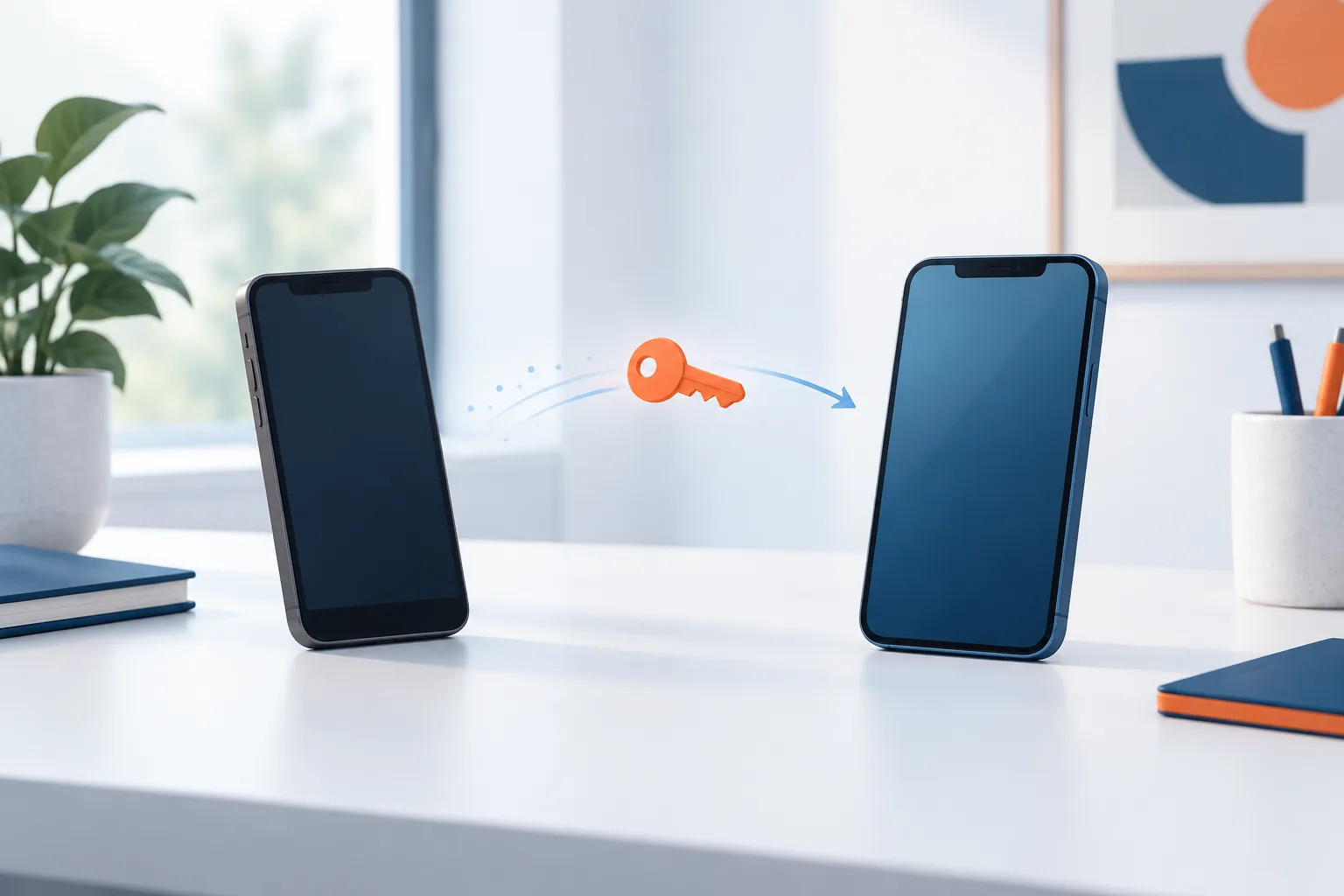
If you are replacing a phone you still have
A planned replacement is easier to coordinate while the old device is available. Before trading it in, resetting it, or removing its authenticator app, check your organization’s instructions. Depending on the account setup, you may need to enroll the new phone while signed in, register another approved method, or ask IT to assist.
After enrollment, test that the replacement can complete the work sign-in process. Confirm that the old phone has been removed from the account when it is no longer needed. If you are uncertain whether enrollment finished, do not erase or hand off the old phone until IT confirms the next step.
If the phone is lost or stolen
Report the loss as soon as you can, even if you expect to recover the device. Ask IT to revoke or disable its authenticator and consider whether active work sessions or other access tied to the phone also need attention. The administrator can determine which actions fit your organization’s systems and incident process.
If the device may have allowed access to clinical information, follow your organization’s security or incident-reporting procedure. Share what you know with the designated team, including whether the phone had a screen lock and which work applications were accessible. Avoid investigating on your own or deleting data unless IT directs you to do so.
Why restoring an authenticator app may not be enough
Moving an app backup to a replacement phone does not necessarily restore every work or school credential. Some accounts require the user or an administrator to register the new device again. Microsoft’s instructions for restoring Microsoft Authenticator credentials describe app restoration, but your organization’s account policies determine whether a work account can be used afterward.
If your sign-in still fails, contact IT rather than repeatedly restoring backups or changing account settings. For a personal account connected to an app, follow that provider’s recovery process separately. Keep personal and work account recovery distinct.
Do not use a coworker’s login
A shared login may seem like a quick way to keep work moving, but it obscures which person performed an action and can expose more access than intended. Use your own named account once it is restored. If access is unavailable, ask a supervisor or IT about the clinic’s approved continuity or downtime procedure for the work that cannot wait.
For a broader view of planning MFA access without disrupting clinical workflows, see MFA rollout planning for medical practices. For practical ideas on preserving access to information while maintaining appropriate controls, read how clinics can improve patient data access.
How clinics can reduce lockouts during phone changes
Clinic managers and IT teams can make recovery less disruptive by documenting a simple process before a device goes missing. The process should explain how staff report a problem, how identity is verified, what approved backup methods are available, and who can remove an old authenticator and enroll a replacement.
- Keep individual accounts for each staff member. Do not make shared logins the fallback for an MFA interruption.
- Tell staff how to reach the help desk when they cannot sign in, including when they are away from the clinic.
- Explain how approved backup methods or recovery codes should be stored and used. Do not leave them in a place that is accessible to others.
- Include phone replacement in staff onboarding and device-change instructions, and remind employees to contact IT before wiping or trading in an old phone.
- Test the recovery process with the relevant systems and roles so staff know where to go when access is interrupted.
A clinic’s recovery plan should fit its account setup and clinical workflows. Zevonix provides healthcare IT services to providers in Daytona Beach and Central Florida, including cybersecurity, EHR support, and IT consulting. For help with a healthcare technology access issue, contact Zevonix at (386) 260-0777.
Frequently asked questions
Who should I contact if I cannot approve an MFA prompt?
Contact your organization’s help desk, IT administrator, or designated manager through its approved channel. They can verify your identity and explain the recovery options for your account.
Can I use a backup code or another registered method?
Only if your organization has approved that method for your work account. Follow its instructions, keep codes private, and let IT know if you use a recovery option so they can help restore your regular sign-in.
Should IT remove the lost phone from my account?
Yes, report the loss and ask IT to disable or remove the old authenticator as appropriate. IT can also assess whether related sessions or access need attention.
Can a coworker share their login while I wait?
No. Use your own account and follow the clinic’s approved continuity or downtime process until your access is restored.
Restore access without weakening accountability
When an MFA phone is lost or replaced, report it promptly, verify your identity through the approved process, enroll a replacement, and confirm the old method is disabled. If your clinic needs a clearer recovery path for staff, contact Zevonix to discuss its healthcare IT needs.